
A record's page
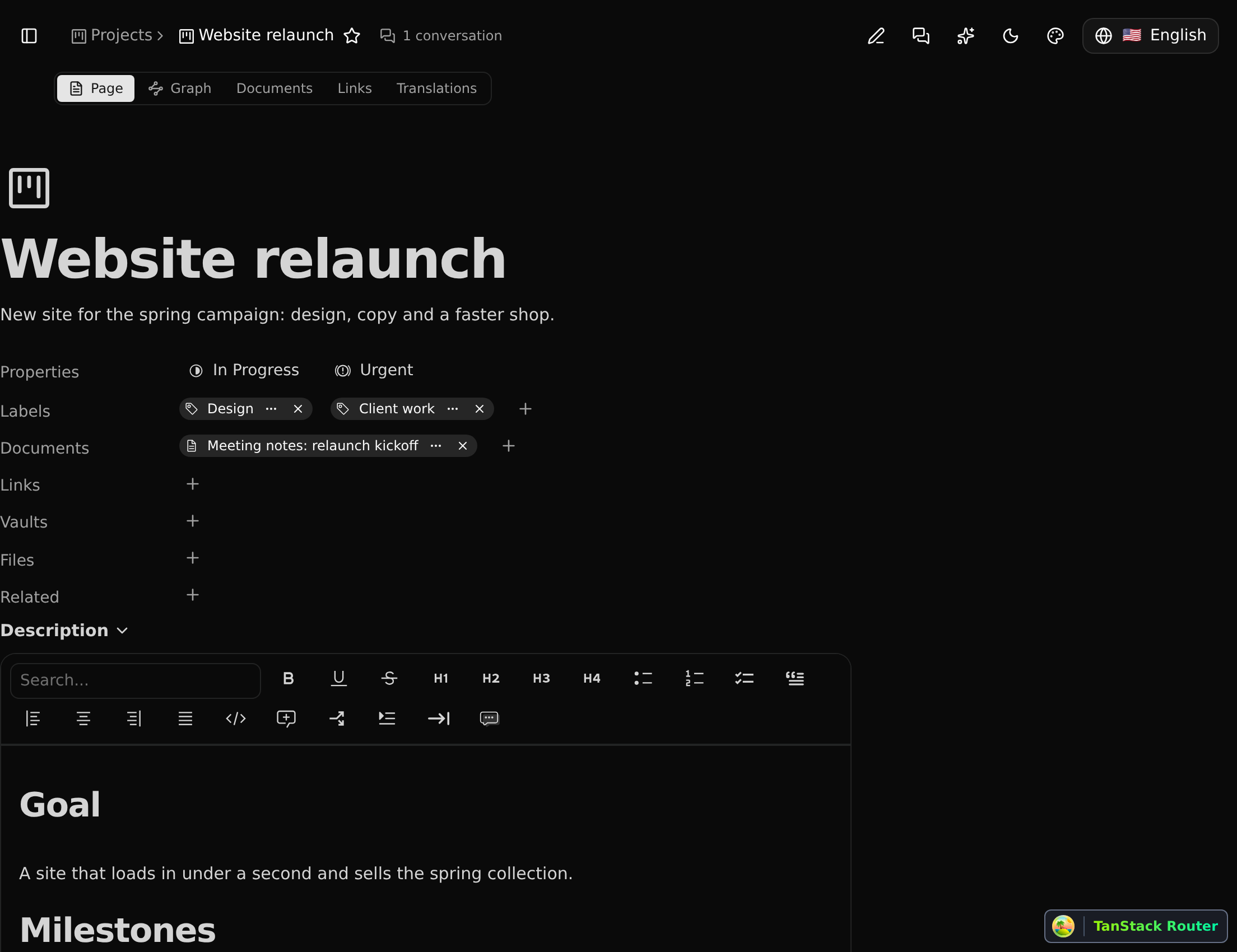
At the top are the record's icon, its name and its summary. Below them the properties (here, status and priority), then one line per relation the type shows on the page: labels, documents, links, vaults, files. At the bottom is the description, a rich text of its own.
Changing a field
Click a value to change it. A select field opens its choices, a text field becomes editable, a date opens a calendar. The change is saved when you pick or leave the field.
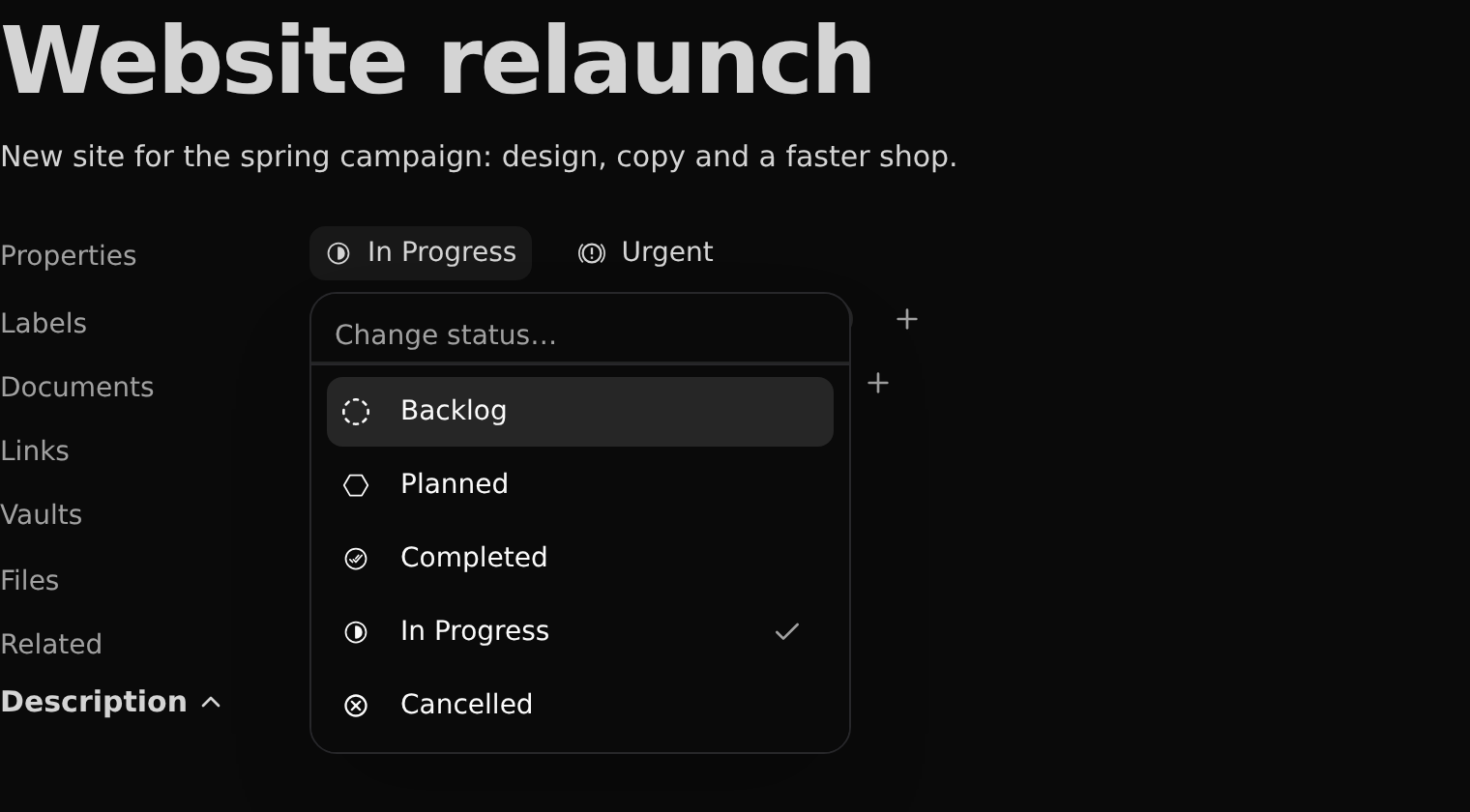
Relations work the same way: + on the Labels line links a label (or makes a new one), and the … on a linked record unlinks it.
Tabs

- Page: the fields and the description.
- Graph: what the record is linked to.
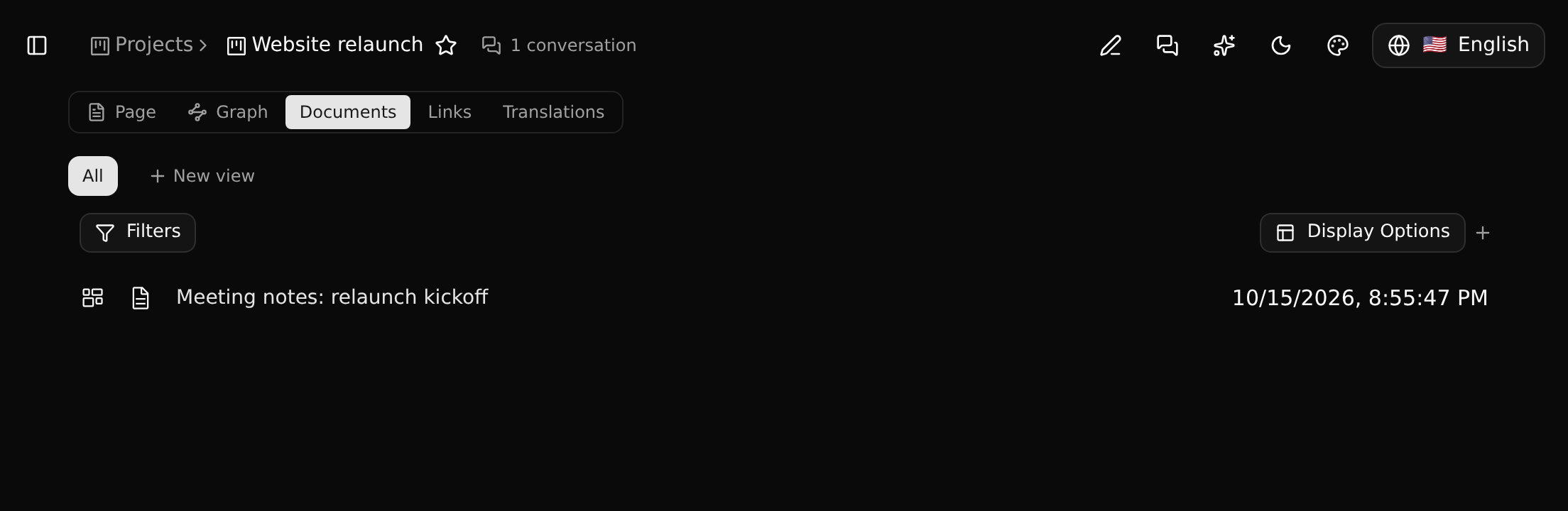
- One tab per relation the type places in its tabs. Each is a full list, with filters, display options and saved views.
- Translations: the record in other languages. See Translating records.
Each tab has its own address, so it can be linked to.
The graph
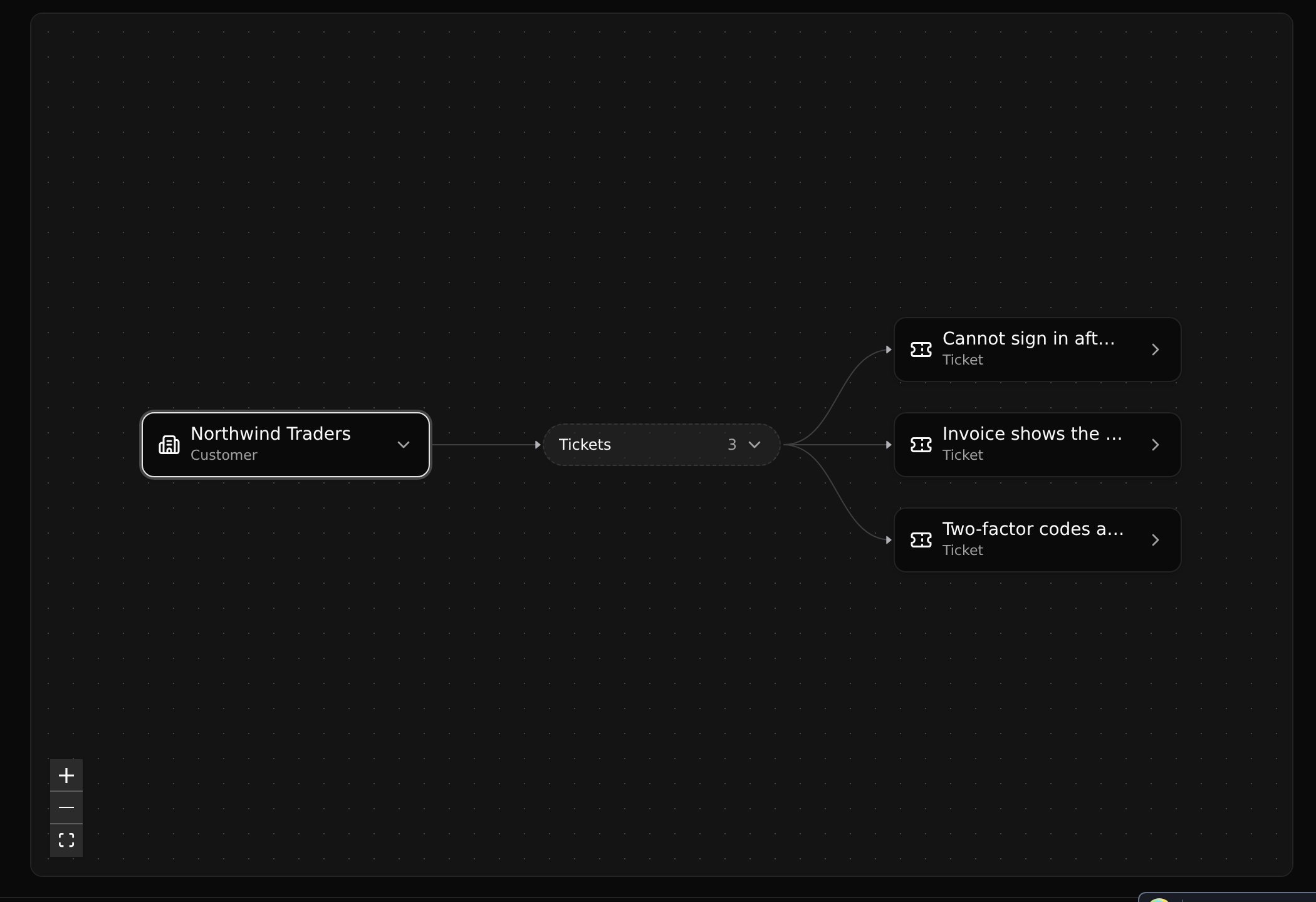
The graph draws the record in the middle and what it is linked to around it. Click a group to unfold it, and a record in it to go on from there.
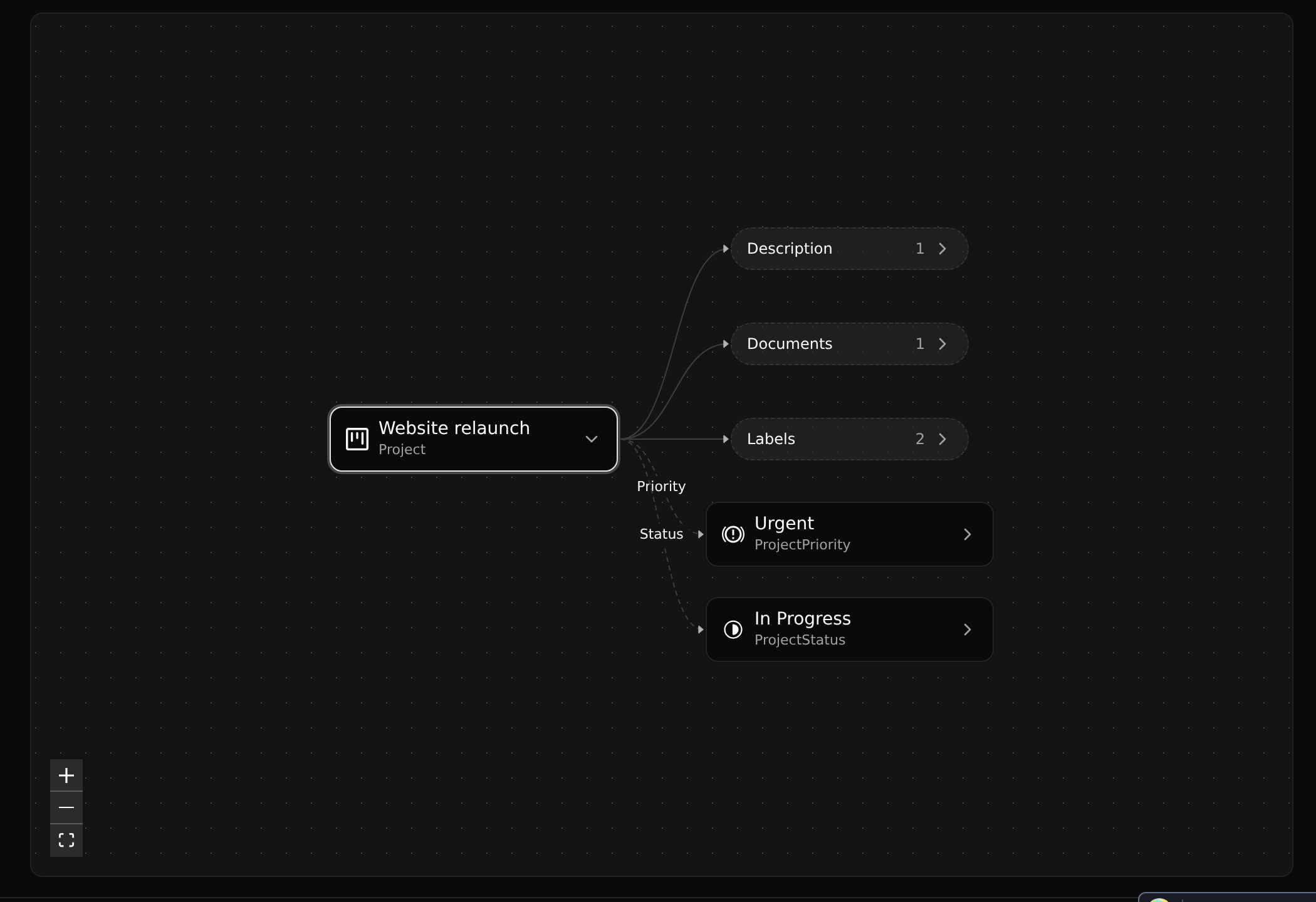
It is the quickest way to see relations a type does not show on its page. Here, a customer of the Helpdesk app with its tickets:
Favourites and conversations
The star next to the record's name adds it to your favourites in the sidebar. Favourites are personal: they are yours even on a branch you may not otherwise change.
Next to it, the header says how many conversations are about this record. Click it to read them or start one.