
Views, commands and the sidebar
A type's views decide where its fields appear. There is one view per place records are shown, and each view is made of sections that fields are placed in.
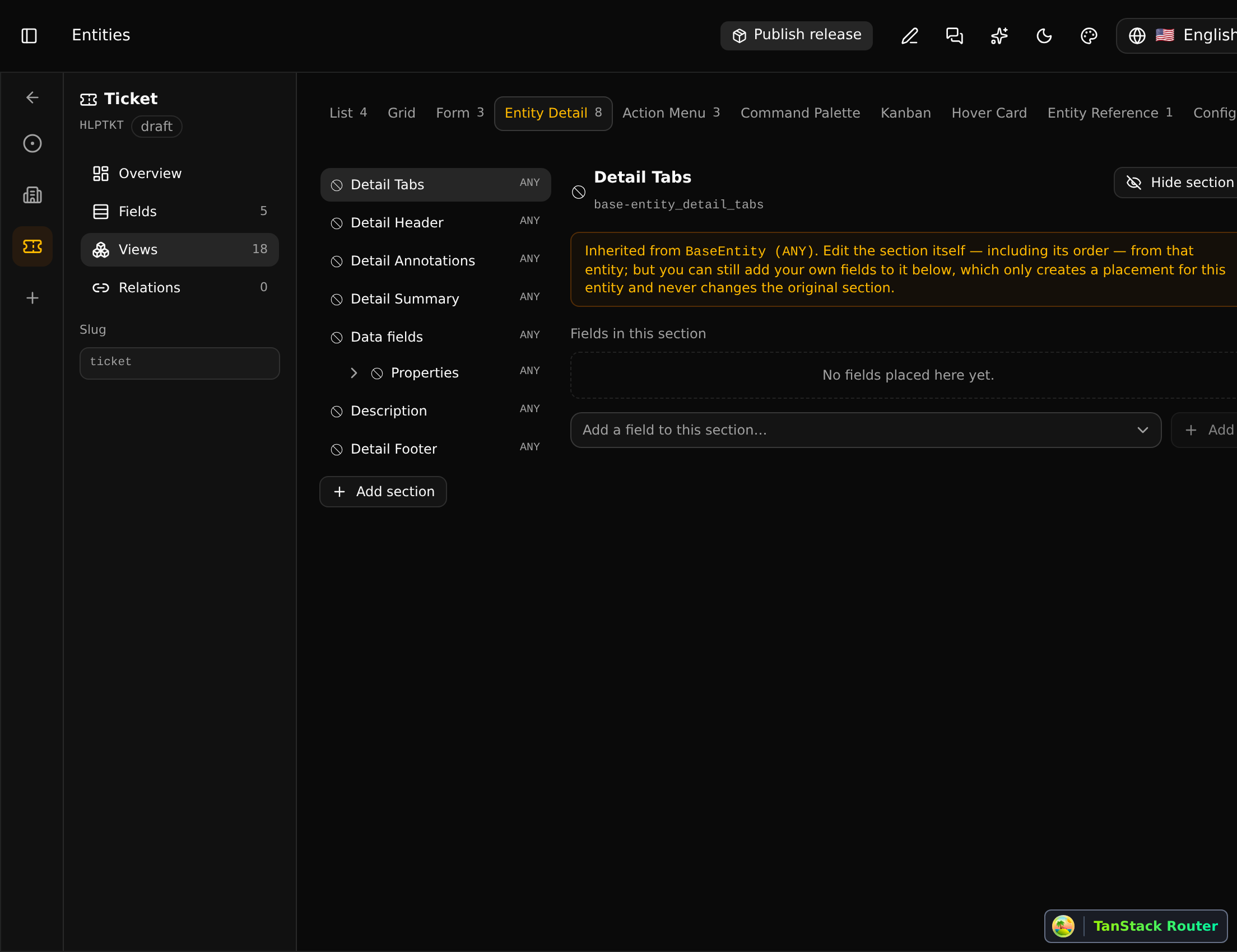
| View | Where it is used |
|---|---|
| List | The rows of the type's list |
| Form | The create form |
| Entity Detail | The record's page: the title, the properties, the relation lines, the tabs |
| Action Menu | The record's commands |
| Entity Reference | How a record looks when another record points at it (a badge, a picker option) |
| Hover Card | The card shown on hover |
| Kanban, Grid, Command Palette, Config | Other presentations |
A type inherits its parent's sections, so a new type that extends the base entity already has a title, a summary and a properties section. Fields you add are placed in the list, the form and the detail page's properties by default.
Placing a field
Pick a view, pick a section, and add the field to it. Each placement has its own settings:
- Order within the section.
- Date format, for date fields: a preset (relative, ISO) or a pattern like
dd/MM/yyyy HH:mm. The same date can be relative in the list and exact on the page.
A relation is placed the same way. In the detail view's tabs section it becomes a tab of the record's page.
Placing a component
Some tabs are not fields: a coding session's Transcript is drawn by a piece of CodeKasten itself. A type gets such a tab from a section of the type Component:
- In Views, open Entity Detail and choose Add section.
- Give it the tab's name, set Section type to Component and Slot to Navigation Tabs.
- Choose the Component from the list of the ones CodeKasten has.
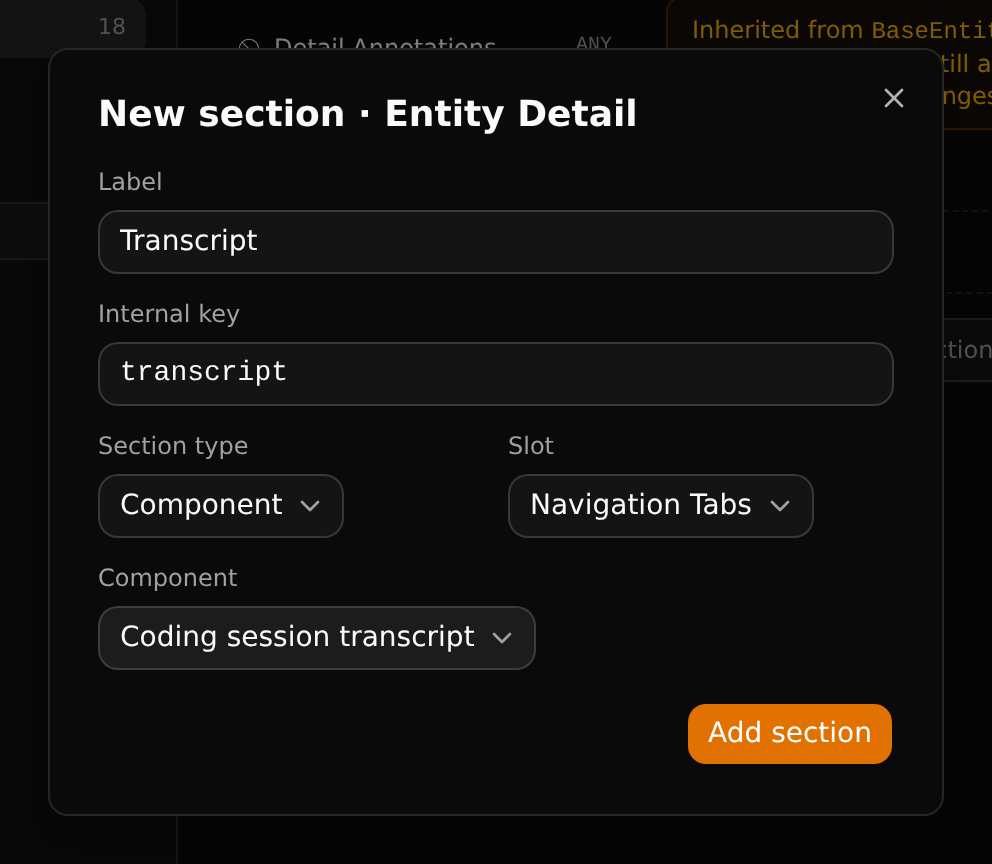
The tab is part of the type, so it ships with your app: a workspace that installs the app gets it on the type's records, and one that does not never sees it. Delete the section and the tab is gone. Components are drawn only as tabs so far, and only CodeKasten's own are in the list.
Commands
A field placed in a section of the Action Menu view is a command of the record. It has two more settings:
- Command name: what the command is called ("Change status…").
- Shortcut: keys pressed one after the other (
P S).
The builder warns when two shortcuts of a type clash. Select, enum, yes/no, text and number fields can be commands, and so can relations: a many-to-many relation opens a list to tick, any other opens the form for a new related record.
This is all it takes to add a command: there is no code. See Commands and shortcuts for how they are used.
Sidebar items
Show in sidebar on a type's Overview makes an item for its list. Items ship with the app and appear in the Apps group of the installing workspace, which can rename, reorder and hide them for itself (see Finding your way around).
An item can also point at a settings page, a workflow, a saved view or an address.