Finding your way around
The sidebar
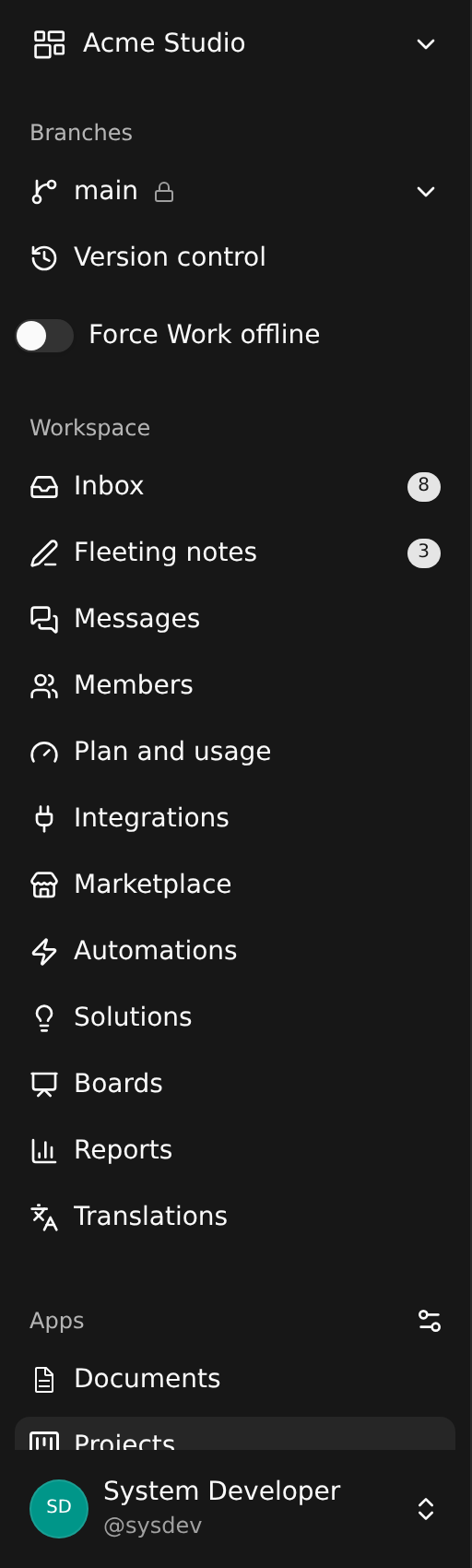
From the top:
- The workspace menu: switch workspace, open Settings and your profile.
- Branches: the branch you are on, with a lock when it is protected. Click it to switch or to act on a branch. Version control opens the history.
- Workspace: what every workspace has. Inbox, Messages, Members, Integrations, Marketplace, Automations, Solutions, Boards and Translations. An app or workflow workspace also has its builder here.
- Apps: the lists of the record types this workspace uses. Apps decide which types appear; you can arrange them.
- Navigation: your favourites, vaults and recently opened records.
- You: your profile and signing out.
Arranging the Apps group
Click the sliders icon next to Apps. Each item can be renamed, moved up or down, or hidden. Click the tick when you are done.
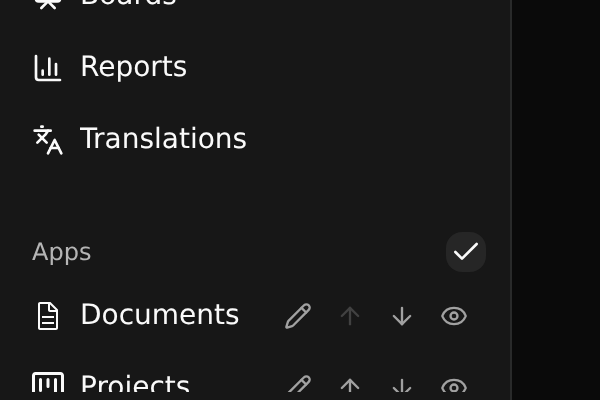
These changes belong to your workspace and survive an upgrade of the app: a hidden item stays hidden.
The header

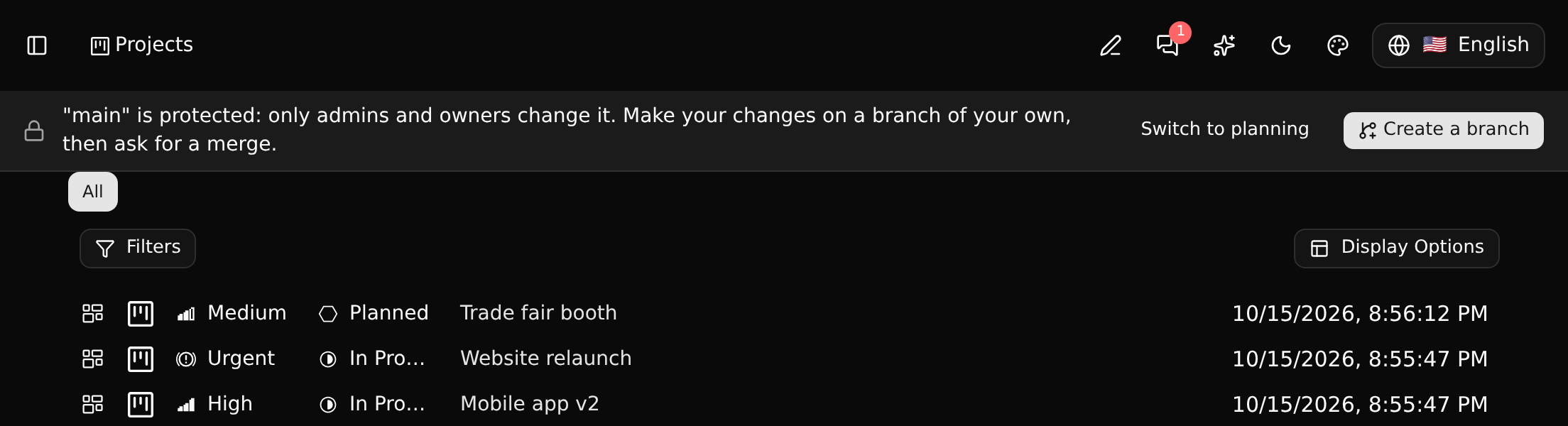
On the left, the button that folds the sidebar away and the name of the page (on a record, the path to it). On the right:
- Chat, with the number of unread messages. It opens the chat dock.
- Assistant (Ctrl+J). See The assistant.
- Theme and colour theme.
- Language.
The command palette
Ctrl+K (⌘+K on a Mac) opens the command palette on any page. It goes to places, runs the commands of the record you are looking at and searches. Press ? for the list of keyboard shortcuts. See Commands and shortcuts.
When you can only look
Somebody who only reads the branch on screen - a viewer, or a guest who is a reader of it - sees "View only" in the header and no edit controls: fields are plain values, there is no "+", and the builders can be looked through but not used. The same holds for a member on a protected branch, who is told so in a banner with a way out: