
Lists, filters and views
Every record type has a list. Open it from the Apps group of the sidebar.
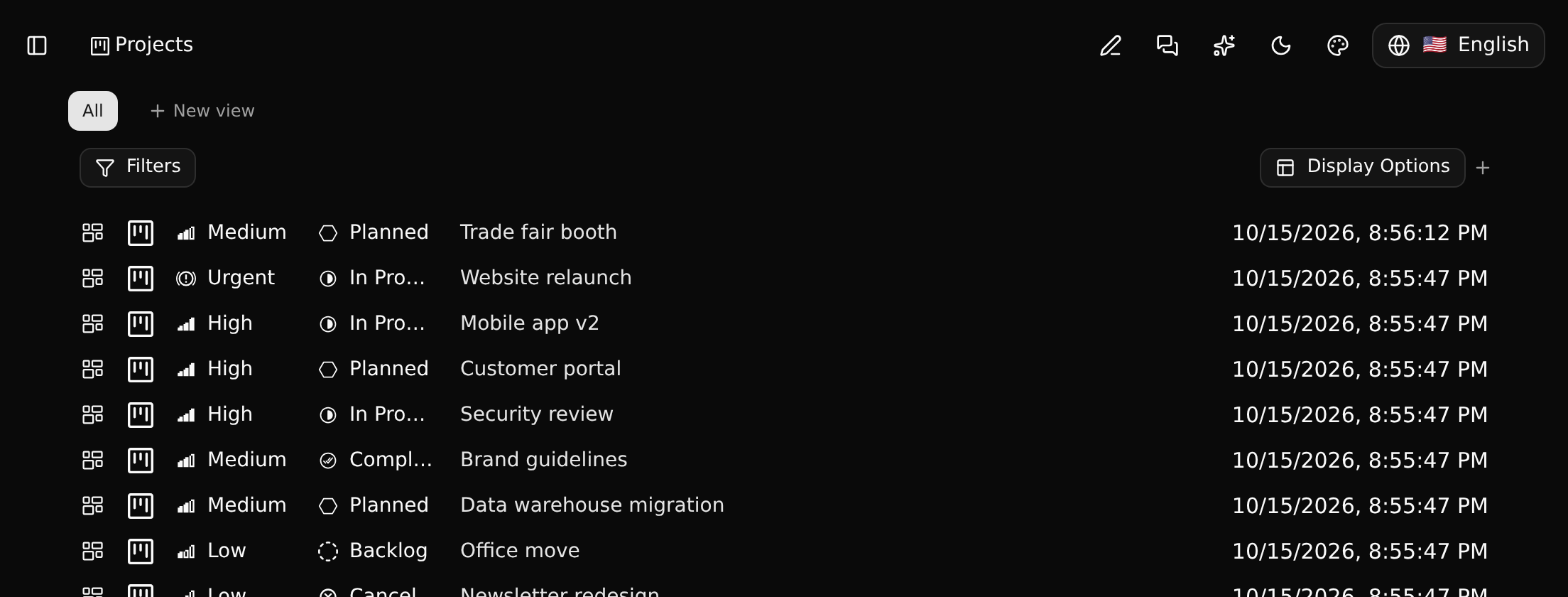
A row shows the fields the type's list view places in it. Click a row to open the record's page. Click a value in a row to change it right there.
Adding a record
The + at the right of the list opens the create form. It has the fields the type's form view asks for; everything else is filled in on the record's page.
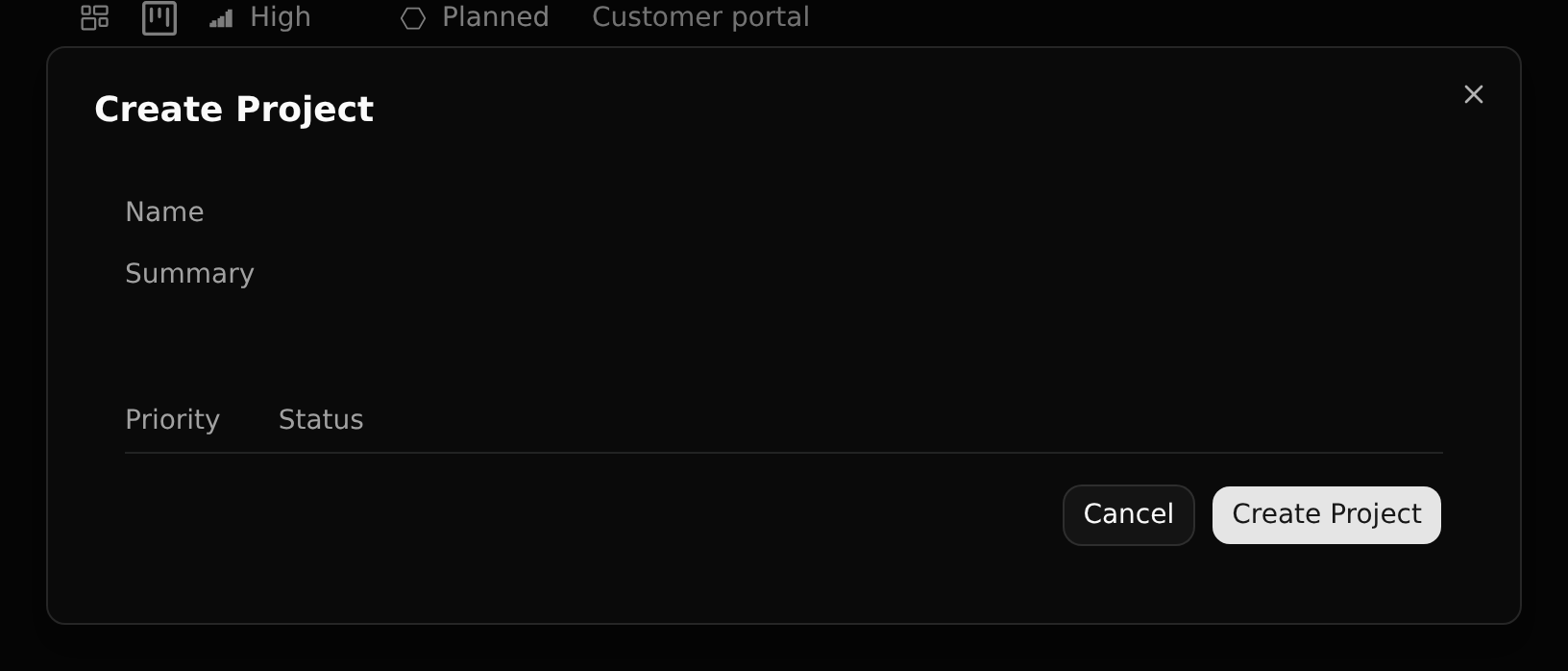
Some lists have no +. A type can be an owner-maintained list (the statuses a ticket can have, say) that only the app defining it adds to. See who may add records.
Filters
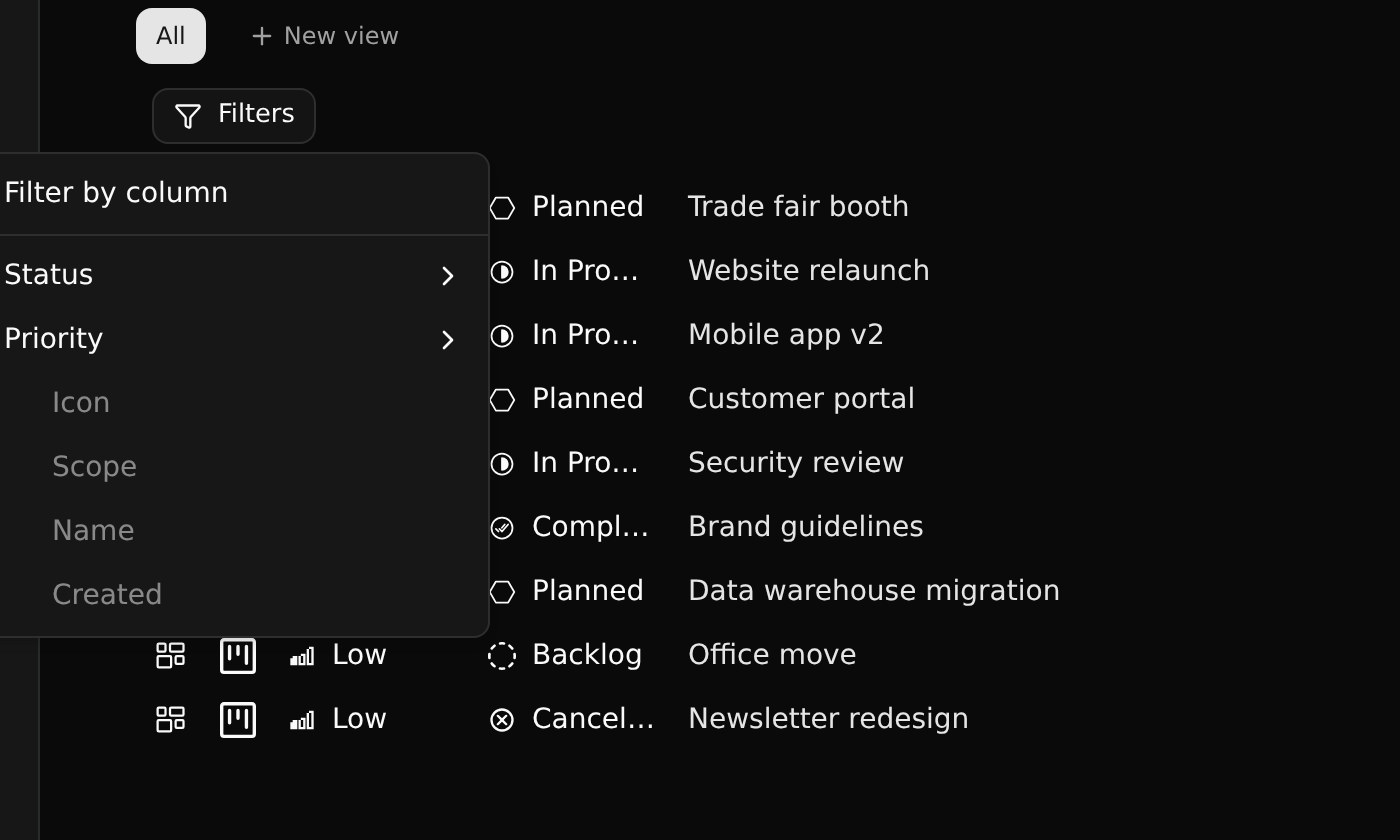
Filters narrows the list by any column: pick the column, then the values.
Display options
Display Options decides how the list is drawn: what it is grouped and sub-grouped by, and which properties each row shows.
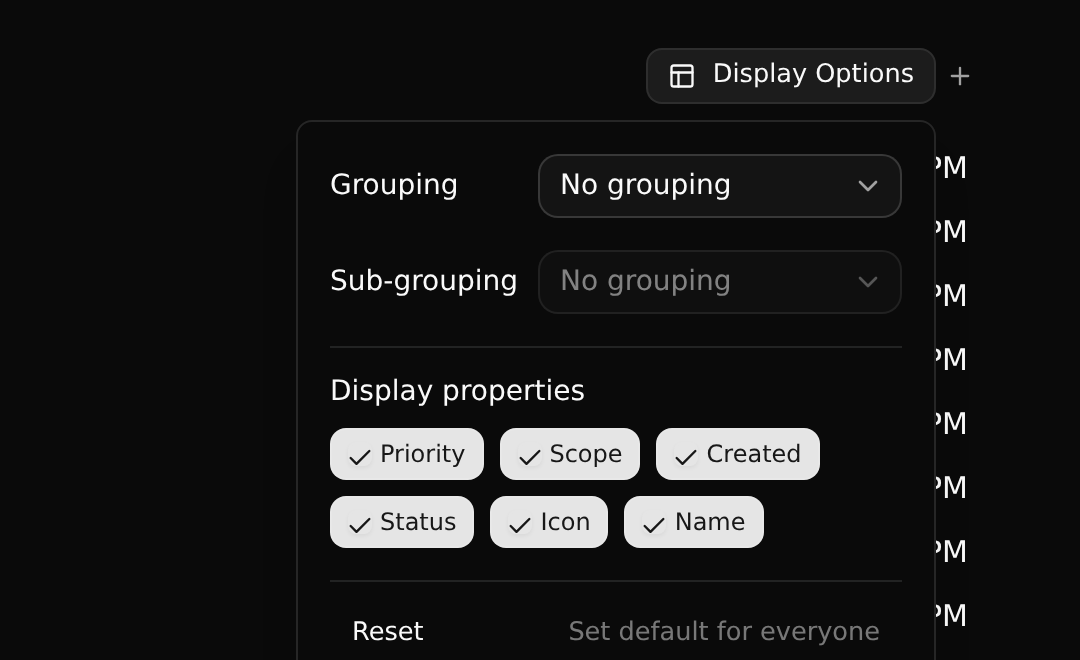
Set default for everyone makes the current options what the workspace sees when nobody has chosen otherwise.
Saved views
Filters and display options can be kept under a name. Click New view, name it, and it becomes a tab next to All, shared with the workspace.
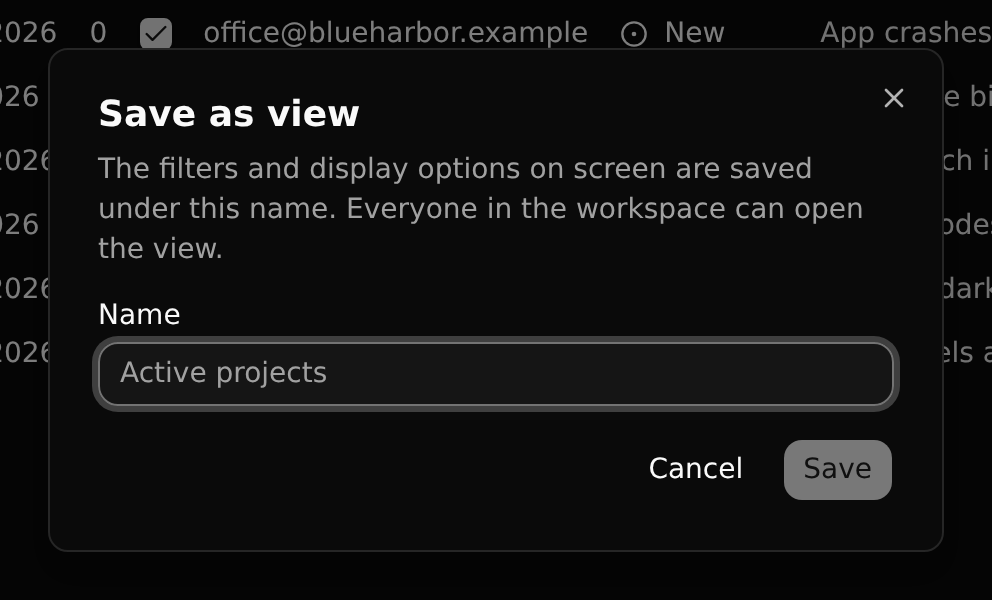
After that, changing a filter changes what is on your screen, not the view: the change is a draft kept in your browser, and the view bar offers Save, Save as new view and Reset. The selected view is part of the address (?view=), so a link opens the same view.
Lists on a record's relation tabs have saved views too.
Right-click
Right-clicking a row gives the record's commands without opening it.
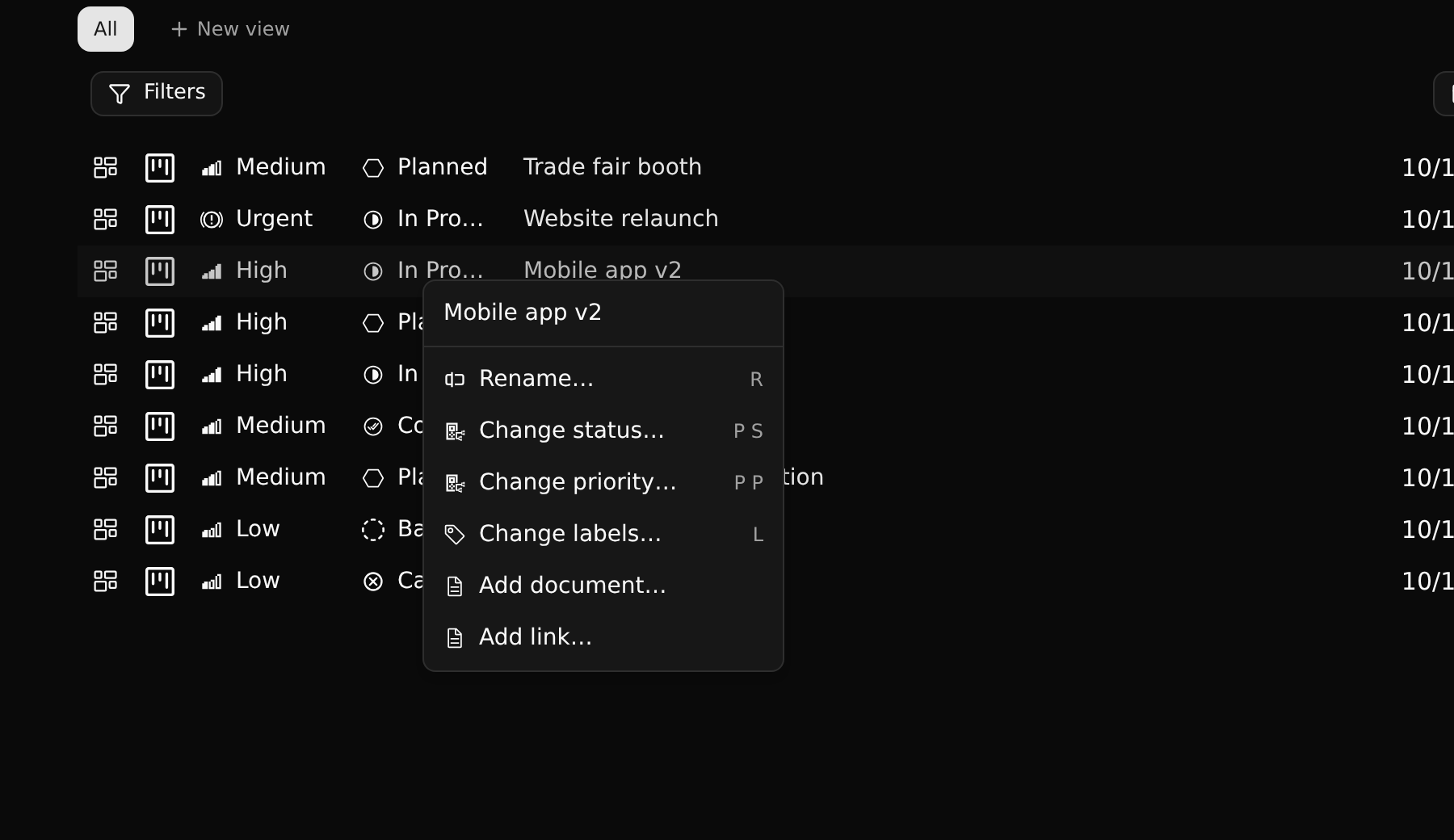
The same commands are in the command palette while the pointer is over a row.