
Drawings
A drawing is a page of shapes - rectangles, ellipses, lines, curves, text and pictures - for a sketch, a floor plan, a logo draft or a diagram you want to keep next to your records.
Drawings come with the Design app, like boards. A workspace that does not have it installs it from the Marketplace; until then there is no Drawings list.
Making one
Drawings in the sidebar lists them. Make one with + and a name, then open its Drawing tab: that is the editor.
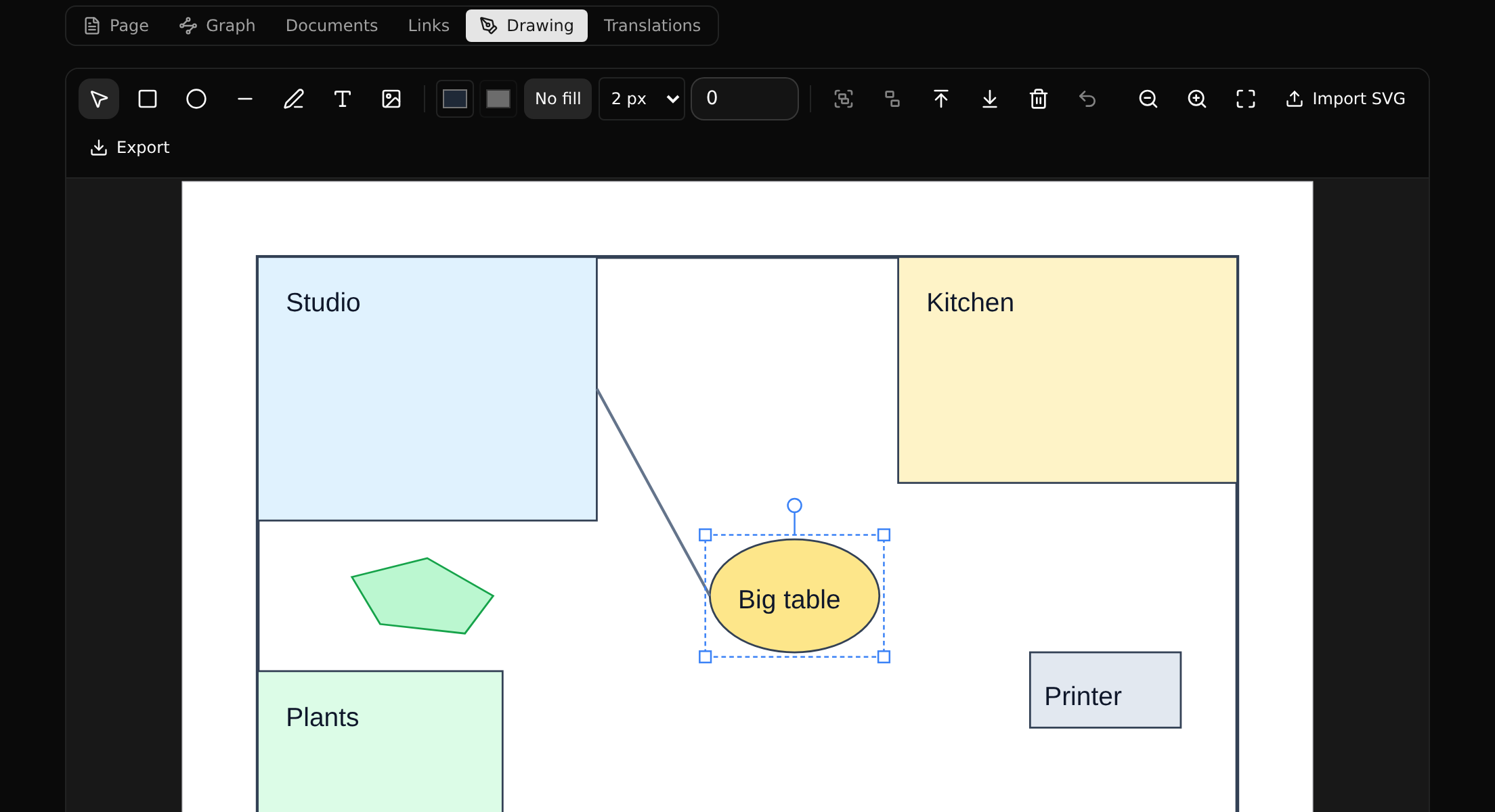
Tools

| Tool | Key | Does |
|---|---|---|
| Select | V | Pick a shape, or drag a box around several; drag to move, a corner to resize, the round handle above to turn |
| Rectangle, Ellipse | R, O | Drag from one corner to the other |
| Line | L | Drag from one end to the other |
| Pen | P | Click for a corner, click and drag for a smooth curve. Click the first point to close the shape; double-click or Enter to finish, Escape to stop |
| Text | T | Click where it goes and type it. Double-click it to change it |
| Image | Upload a picture (PNG, JPEG, GIF, WebP), or pick an image file the workspace already has |
The colour pickers set the stroke (a text's colour) and the fill, No fill leaves a shape hollow, and the width is the stroke's. They apply to what is selected and to what you draw next. Bring to front and Send to back change which shape covers which; the arrow keys nudge the selection (with Shift, by ten); Delete removes it, and Ctrl+Z takes back the last step.
Zoom with the mouse wheel, move around with Space held down (or the middle button), and Fit frames everything that is drawn.
Curves, turning and groups
Double-click a path to edit it point by point: drag a point, or one of the round handles of a curve, which bend it. Escape, or a click elsewhere, ends it.
Turn a shape with the round handle above it (with Shift, by 15 degrees), or type the angle in the box that appears while it is selected.
Group (Ctrl+G) makes the selected shapes one: a click on any of them picks them all, and they move, resize and turn together. Ungroup (Ctrl+Shift+G) takes them apart.
SVG files
Export saves the drawing as an SVG file, which any browser and vector program opens, or as a PNG picture at twice the size on screen. The pictures in it are written into the file, so it stands on its own.
Import SVG adds the shapes of an SVG file to the drawing, as one group fitted into the view: rectangles, circles and ellipses, lines, polylines and polygons, paths with their curves and arcs, text, and pictures the file carries itself, with their colours, and turned, scaled or moved as the file says. Fill and stroke are taken as SVG passes them down from groups, and currentColor is the colour in force. What it leaves out, it counts: scripts, pictures from elsewhere on the web, shapes nothing would show, and the like; a gradient is drawn grey. The file itself is never shown as it is: only the shapes read from it are.
Drawings follow the branch
Each shape is stored on its own, so a drawing lives on a branch and two people who change different shapes on two branches merge without a conflict. Two people who move the same shape at the same time: the last move wins. A drawing that came with an installed app is read-only.
Not there yet: groups inside groups, gradients, mirroring, and several people editing one shape at the same moment.